
Hear your pet’s voice before the video is made
Pick a voice, listen, and approve it. Then check the scene. Your talking pet video starts only after you say yes.
With Custom voice or your own audio, no video gets made with a voice you haven’t heard or a scene you haven’t seen. You choose the words, the tone and the look, and you can redo the audio and the image before you approve.
What Is Voice and Scene Approval?
Voice and scene approval is a step in the WigglePet app where you listen to your pet’s generated voice and look at the scene image before any video is created. You can edit the words, add a laugh or a sigh, or redo the image, and the video is made only after you approve both.
How It Works, Screen by Screen
The app makes the audio first, then the scene image. Each one waits for your OK, and only the second OK starts the video.
-
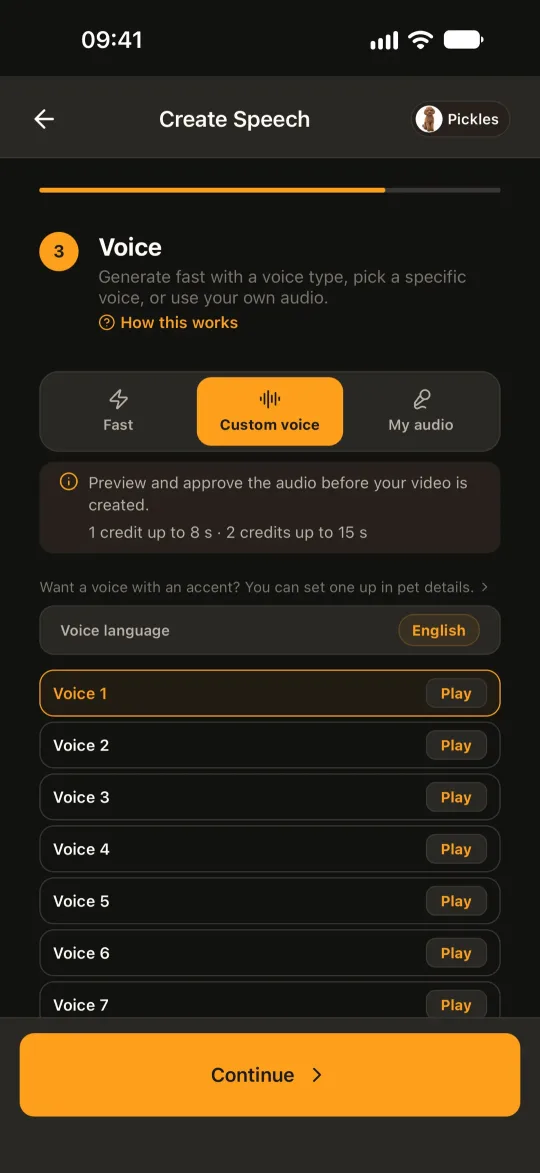
Pick a voice
On the voice step, choose Custom voice, play a few voices and pick one for your pet. Want to use your own voice instead? Choose My audio to record or upload a clip. It goes through the same check. If you give your pet an accent, a Custom accent voice appears here too when the voice language is English.
-
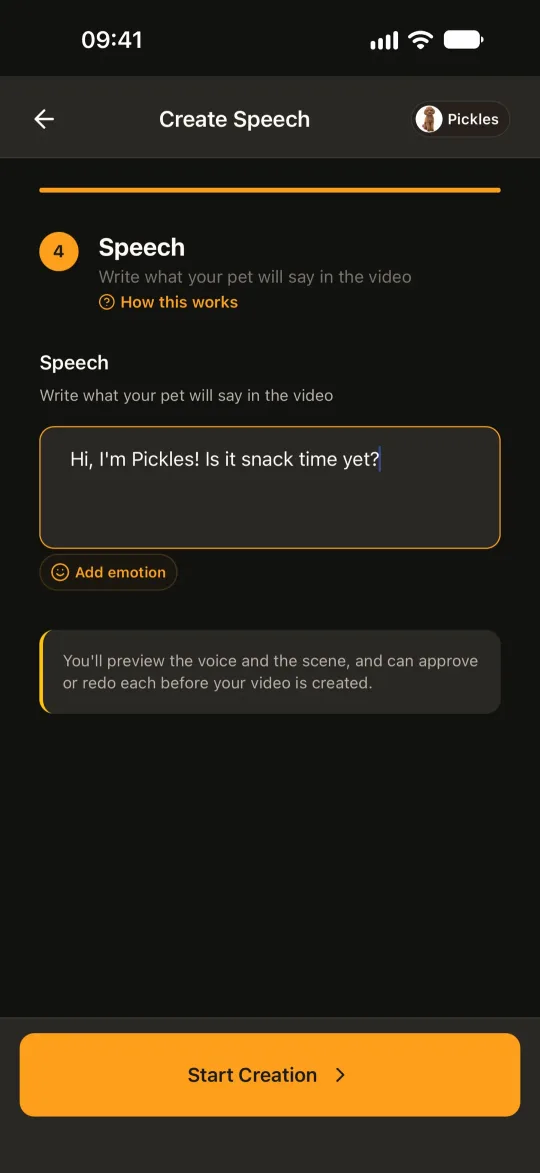
Write the line, add a laugh
Type what your pet says. Tap Add emotion to drop in a laugh or a sigh where you want it, then tap Start Creation. Nothing is turned into video yet.
-
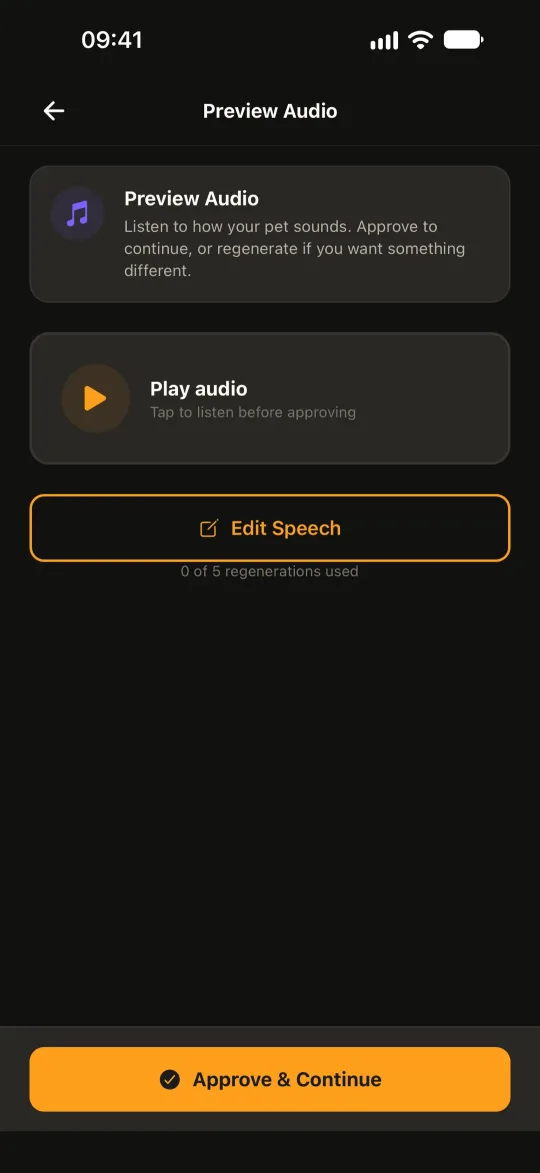
Listen and approve
WigglePet makes the audio first. Tap Play audio and hear how your pet sounds. If it’s right, tap Approve & Continue.
-
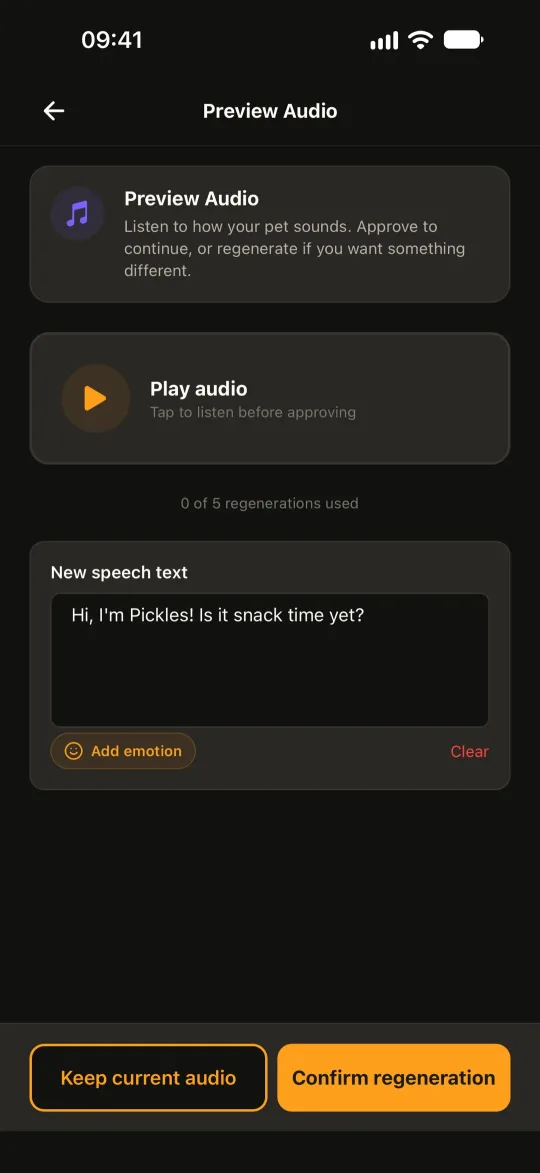
Not right? Edit and redo
Tap Edit Speech, change the words or add an emotion, and tap Confirm regeneration for a new version. You can redo the audio up to 5 times.
-
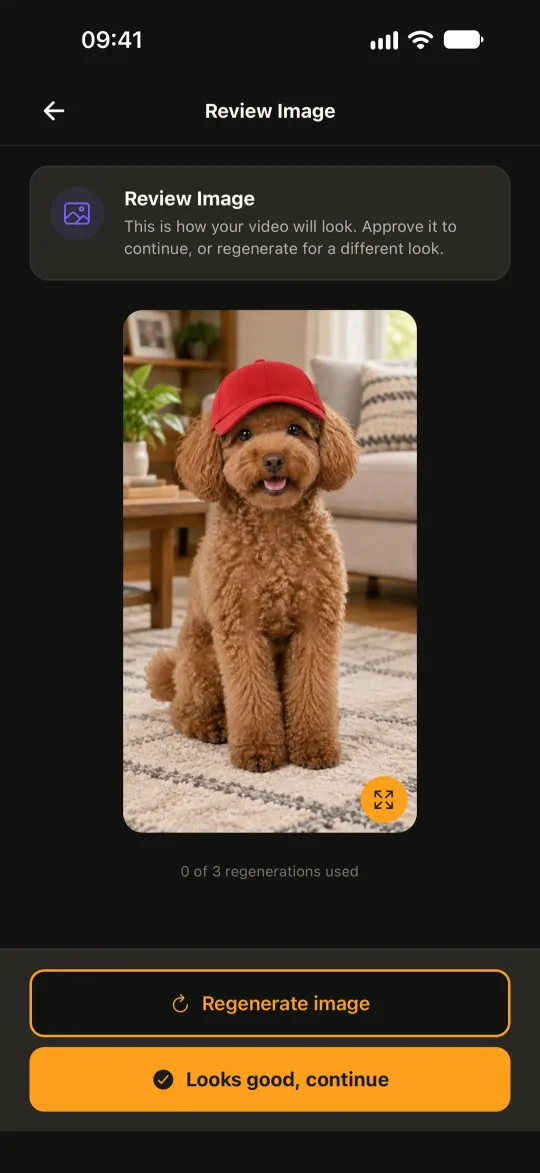
Check the scene
Next you see the image your video starts from: your pet, the scene and any accessory. This is how the video will look.
-
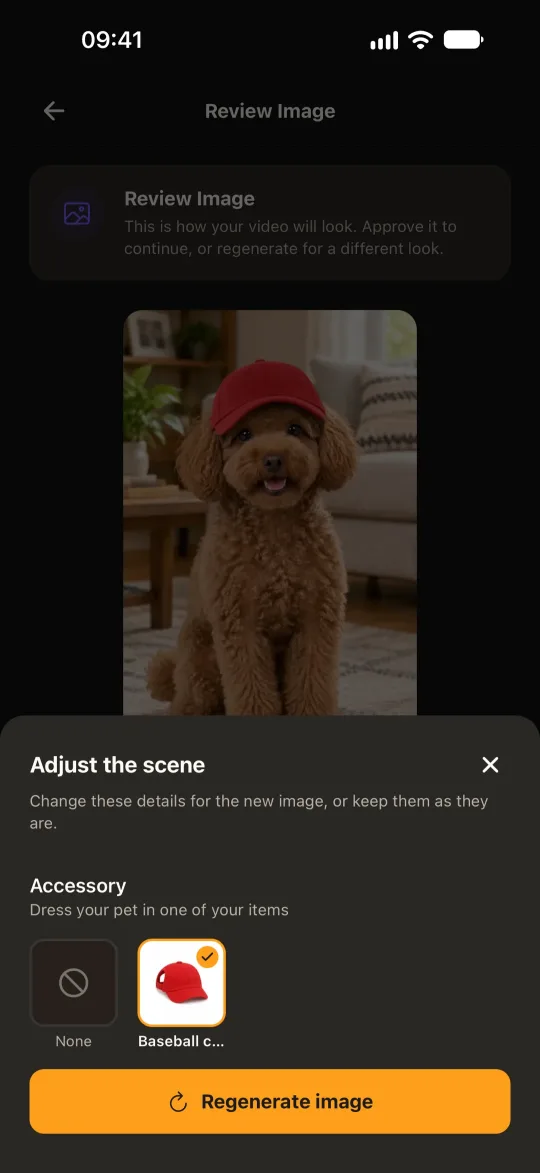
Change the look
Tap Regenerate image for a new one. You can swap the accessory first, or keep it and just get a fresh image. The screen shows how many redos you have left, usually 3.
-
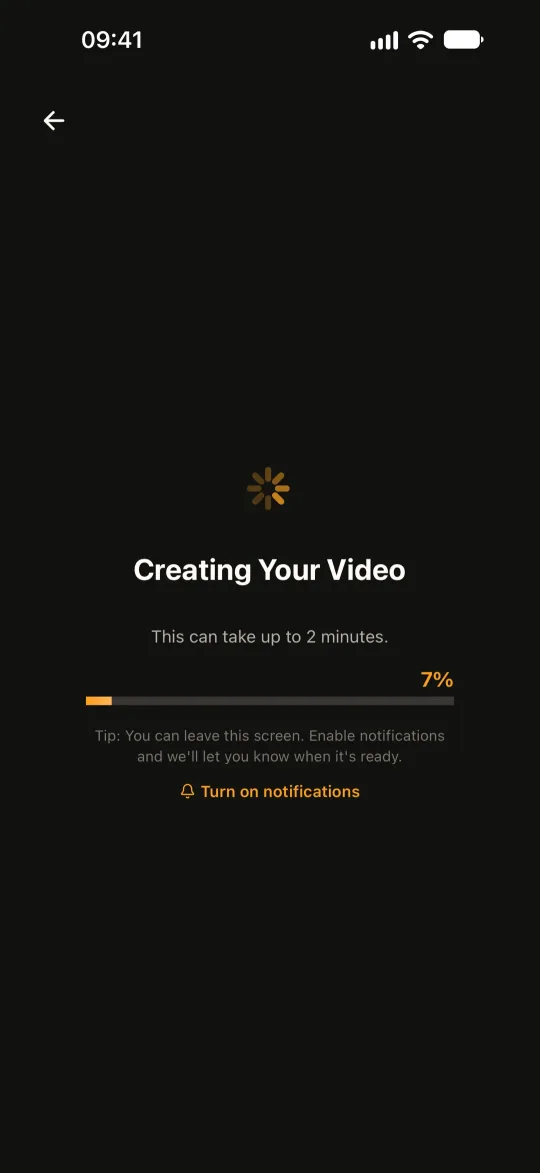
Your video is made
Tap Looks good, continue. Only now does WigglePet make the video, and you can leave the screen while it does. A creation you haven’t approved yet waits for you on its Home or Gallery card.
Where It Works
Most talking and singing videos go through both checks. Fast mode is there for when you want a result right away.
| Video type | Hear the audio first | See the scene first |
|---|---|---|
| Pet Speech with Custom voice | Yes | Yes |
| Pet Speech with My audio (your own voice) | Yes | Yes |
| Two-Pet Chat | Yes, the whole dialogue | Yes |
| Pet Duet | Yes, the song | Yes |
| Talking Templates | Yes | Yes |
| Talking Templates with ready-made audio | No, the audio is set | Yes |
| Pet Speech in Fast mode | No, made right away | No |
Length and Credits
Up to 8 seconds uses 1 video credit. One credit starts the creation, before you hear the audio.
Longer audio? If the audio you approve runs past 8 seconds, add 1 more credit for up to 15 seconds, or edit the text to shorten it. Audio over 15 seconds is cut at 15.
Frequently Asked Questions
Which talking pet app lets me hear the voice before the video is made?
WigglePet does. With Custom voice, My audio, Two-Pet Chat, Pet Duet and most Talking Templates, you listen to the audio and approve it before any video is created.
Can I change my pet’s voice if I don’t like it?
Yes, before you approve it. Tap Edit Speech to change the words or add an emotion such as a laugh, and make a new version, up to 5 times. To try a different voice altogether, pick another one on the voice step, where you can play each voice before you start.
Can I make my pet talk with my own voice?
Yes. Choose My audio, record your voice or upload a clip, and trim it. You still check the audio and the scene before the video is made.
Can I see what the video will look like before it is generated?
Yes. After you approve the audio, WigglePet shows the scene image your video starts from. You can change the accessory and make a new image before you approve it.
How long can a talking pet video be?
Up to 8 seconds for 1 video credit. If your approved audio runs longer, you can add 1 more credit for up to 15 seconds, or shorten your text. Audio over 15 seconds is cut at 15.
Does every WigglePet video have an approval step?
No. Fast mode makes the video right away with no checks, for when you just want a quick result. Talking Templates with ready-made audio skip the audio check but still show you the scene. Choose Custom voice or My audio when you want to approve both.
Keep Exploring
Hear Your Pet First
Download WigglePet, choose Custom voice, and approve the voice and the scene before your video is made.
 Scan to download