
Learn how to use WigglePet
Follow simple visual walkthroughs for Custom Videos, Pet Speech, Singing, and Motion Templates. Expand any tutorial to view the steps and images, and play the video directly on this page when available.
Tutorial 01
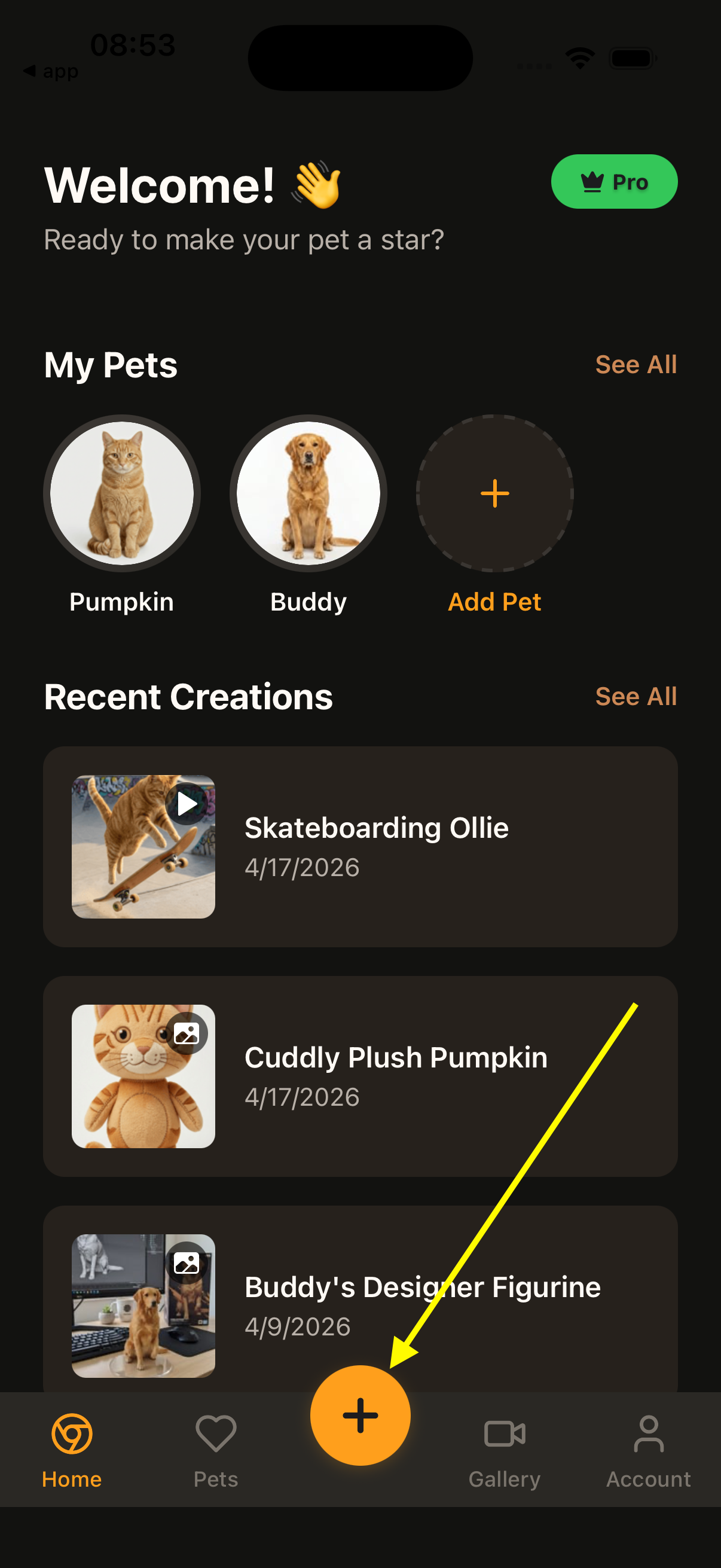
How to Create a Custom Prompt Video
Describe your own scene, choose your pet, and generate a fully custom AI pet video in just a few taps.
Expand to view steps and images.
Tutorial 01
How to Create a Custom Prompt Video
Describe your own scene, choose your pet, and generate a fully custom AI pet video in just a few taps.
Expand to view steps and images.
- 1 Tap the + button to create something new.
- 2 Choose Video from the create menu.
- 3 Tap Custom Video.
- 4 Select the pet you want to feature.
- 5 Enter the prompt for the video you want to generate.
- 6 Tap Generate Video and wait for the result.
1 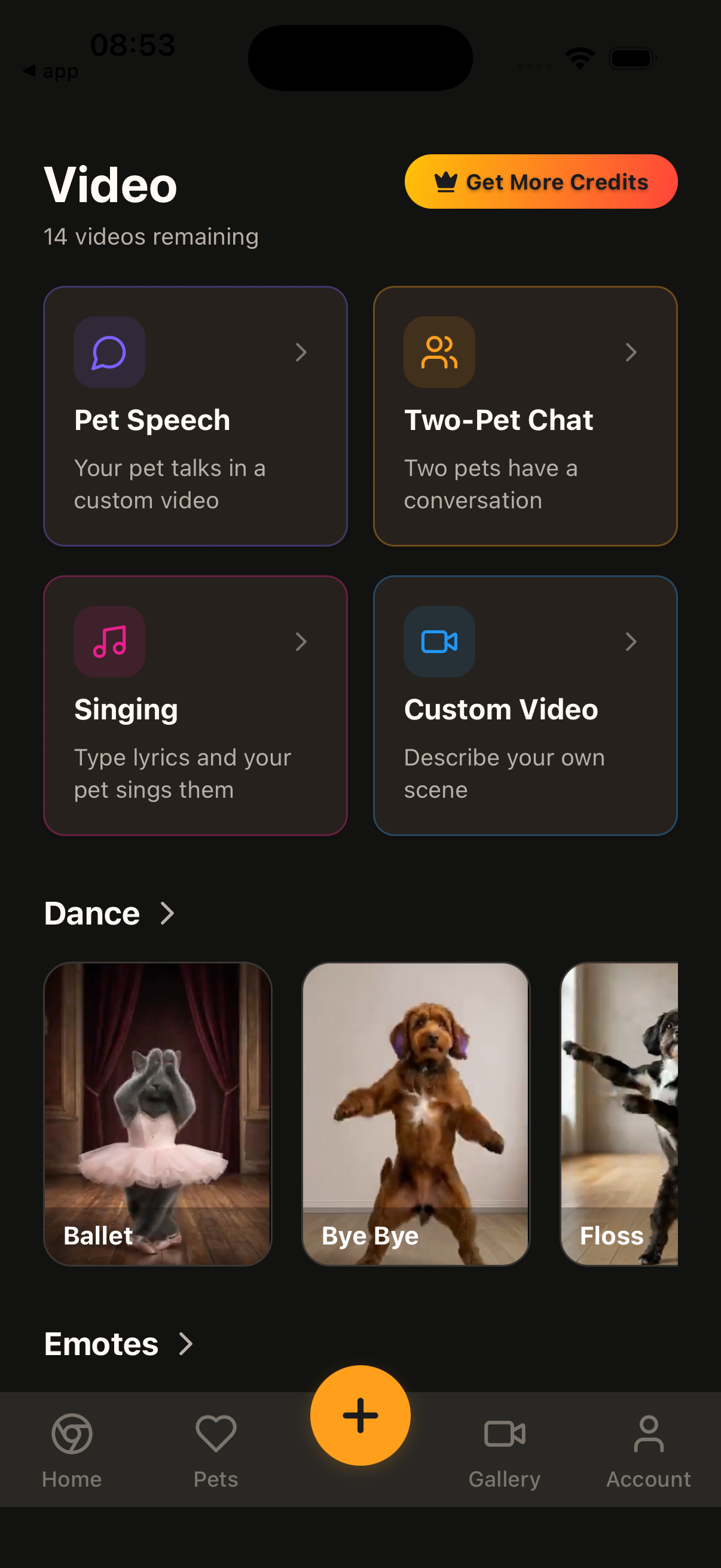 2
2 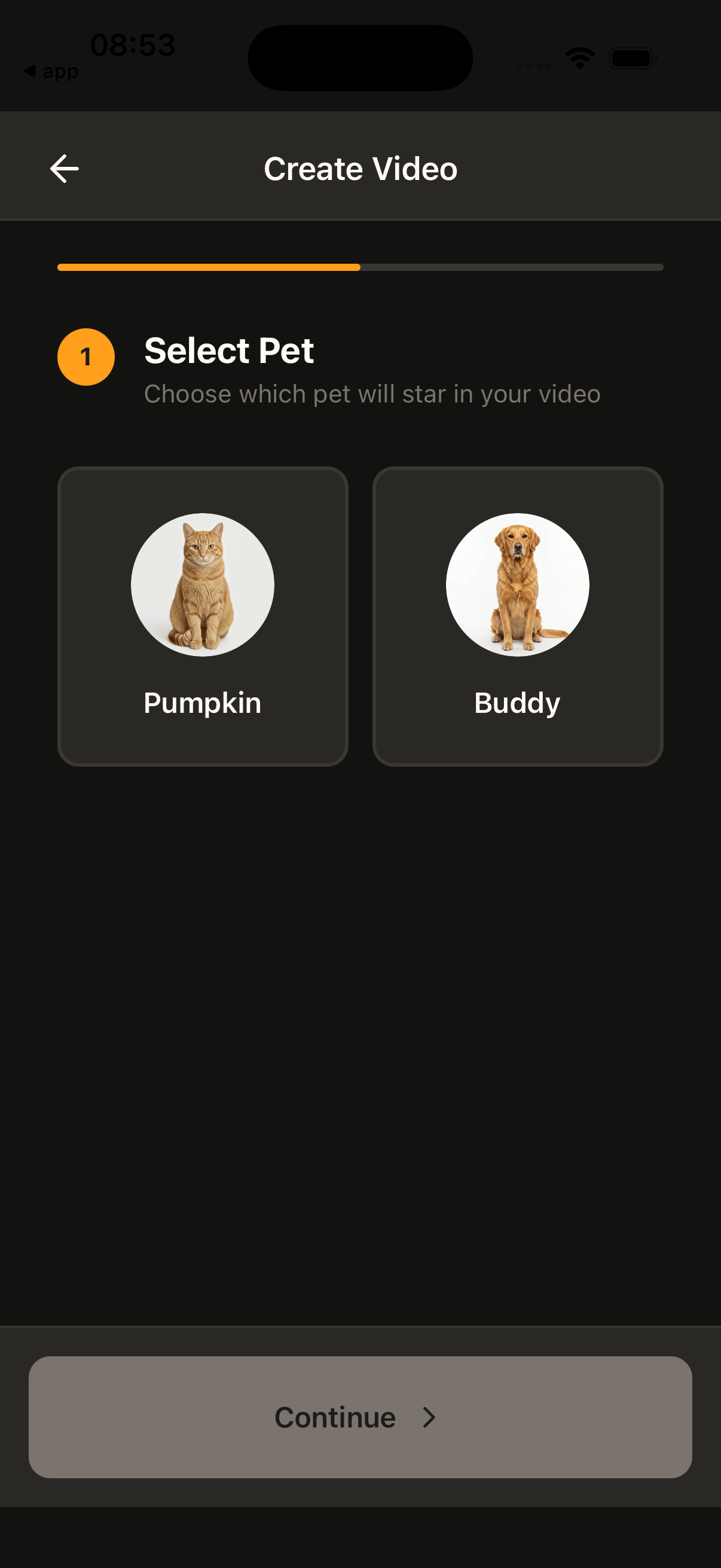 3
3 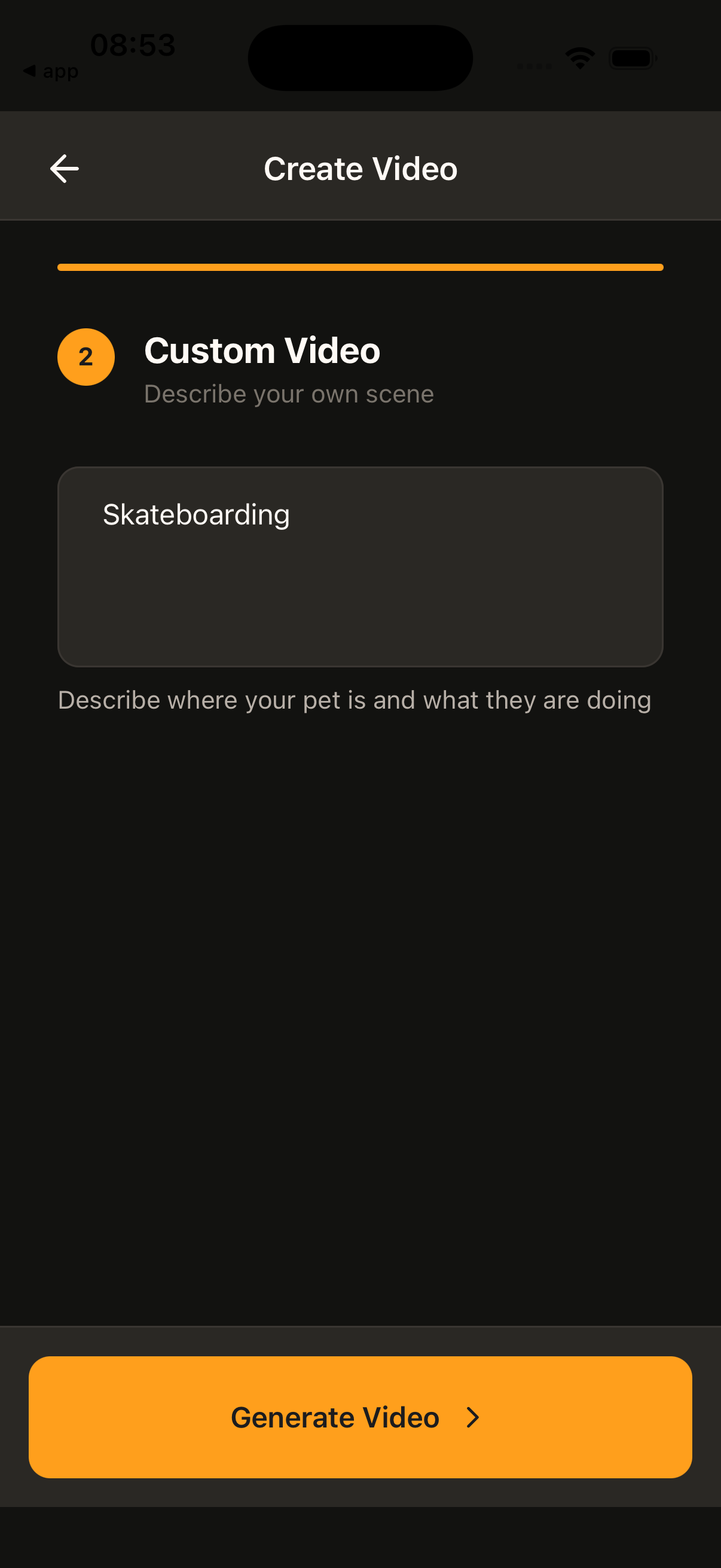 4
4 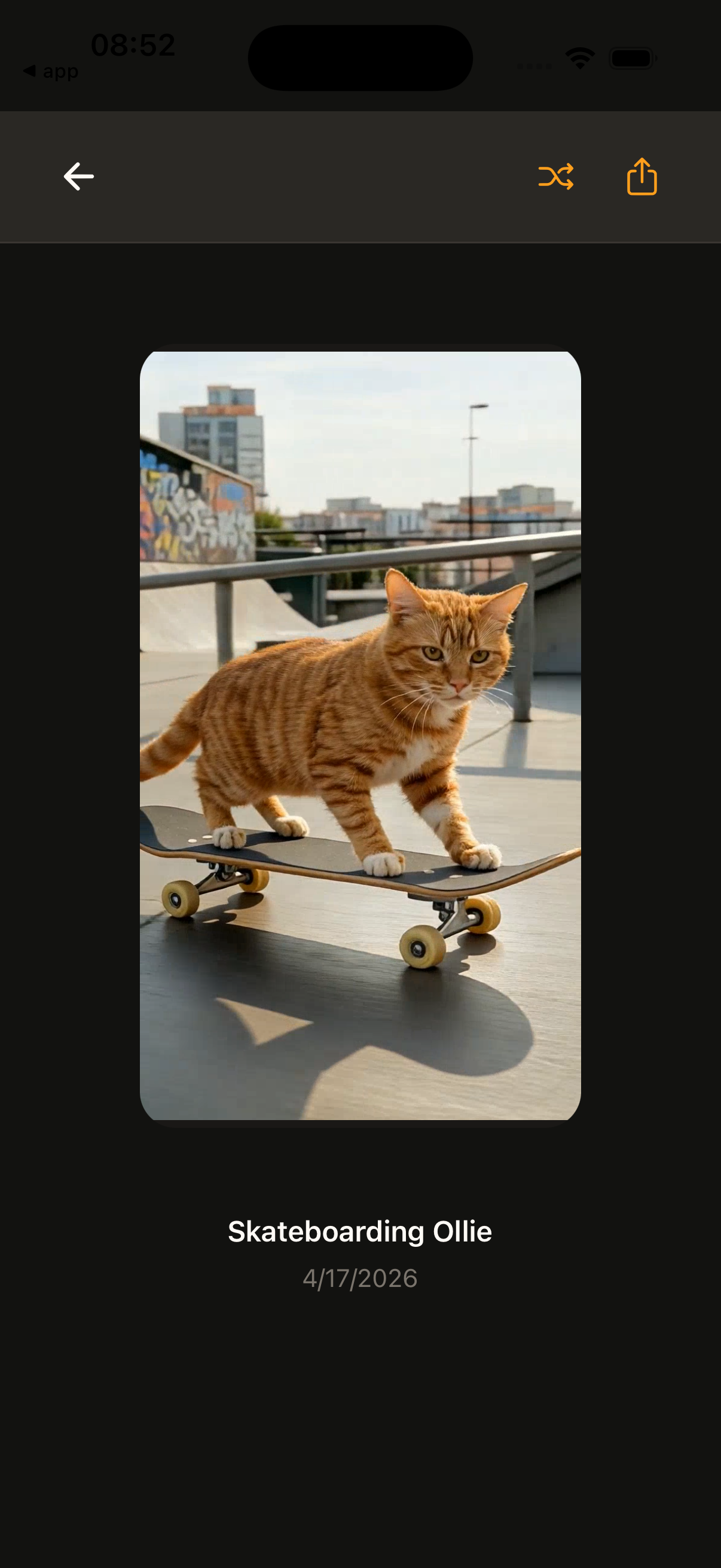 5
5 Tutorial 02
How to Create a Pet Speech Video
Make your pet talk with AI by choosing your pet, optionally setting the scene, entering speech text, and generating the video.
Expand to view steps and images.
Tutorial 02
How to Create a Pet Speech Video
Make your pet talk with AI by choosing your pet, optionally setting the scene, entering speech text, and generating the video.
Expand to view steps and images.
- 1 Tap the + button to create something new.
- 2 Choose Video from the create menu.
- 3 Tap Pet Speech.
- 4 Select the pet you want to feature.
- 5 Adjust the scene or background if you want. This step is optional.
- 6 Enter the speech text.
- 7 Tap Generate Video and wait for the result.
1 2 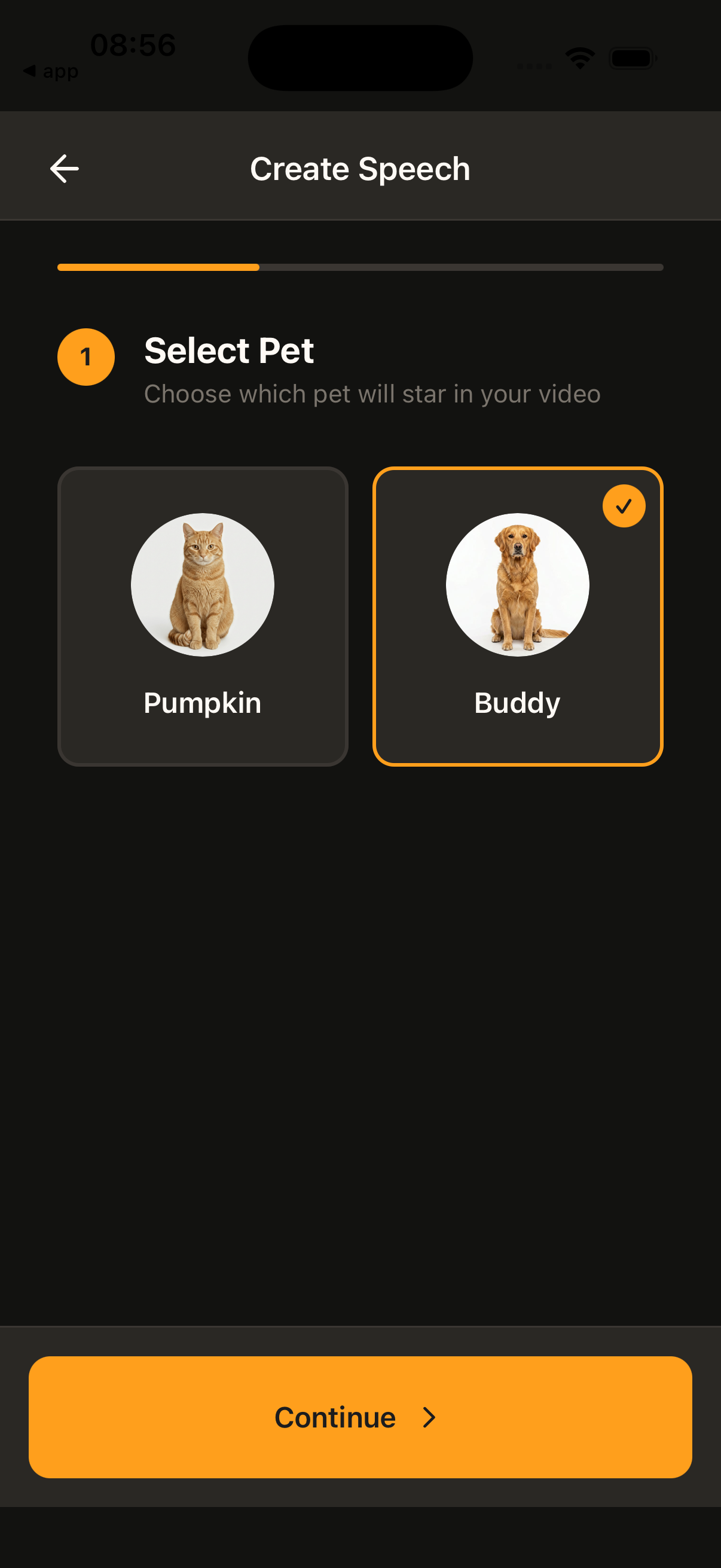 3
3 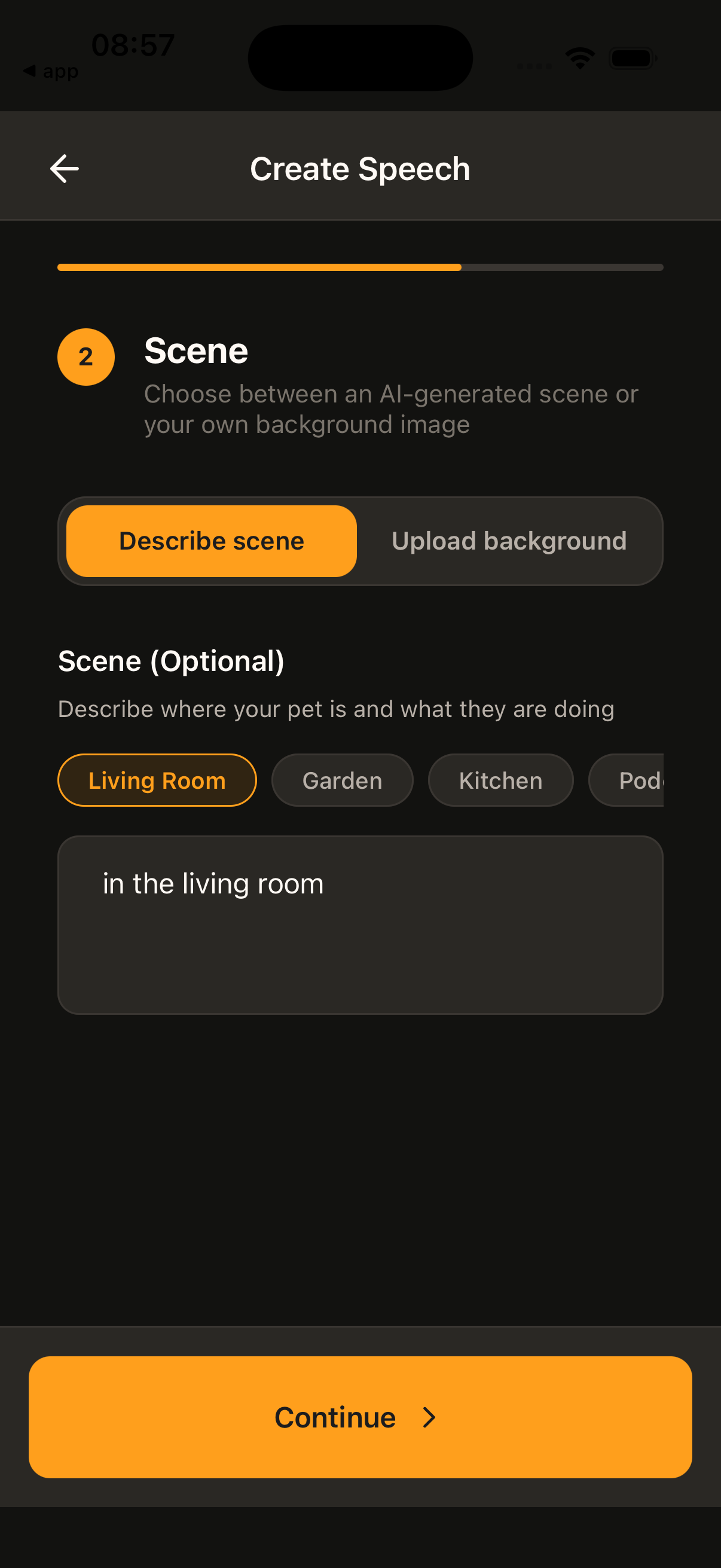 4
4 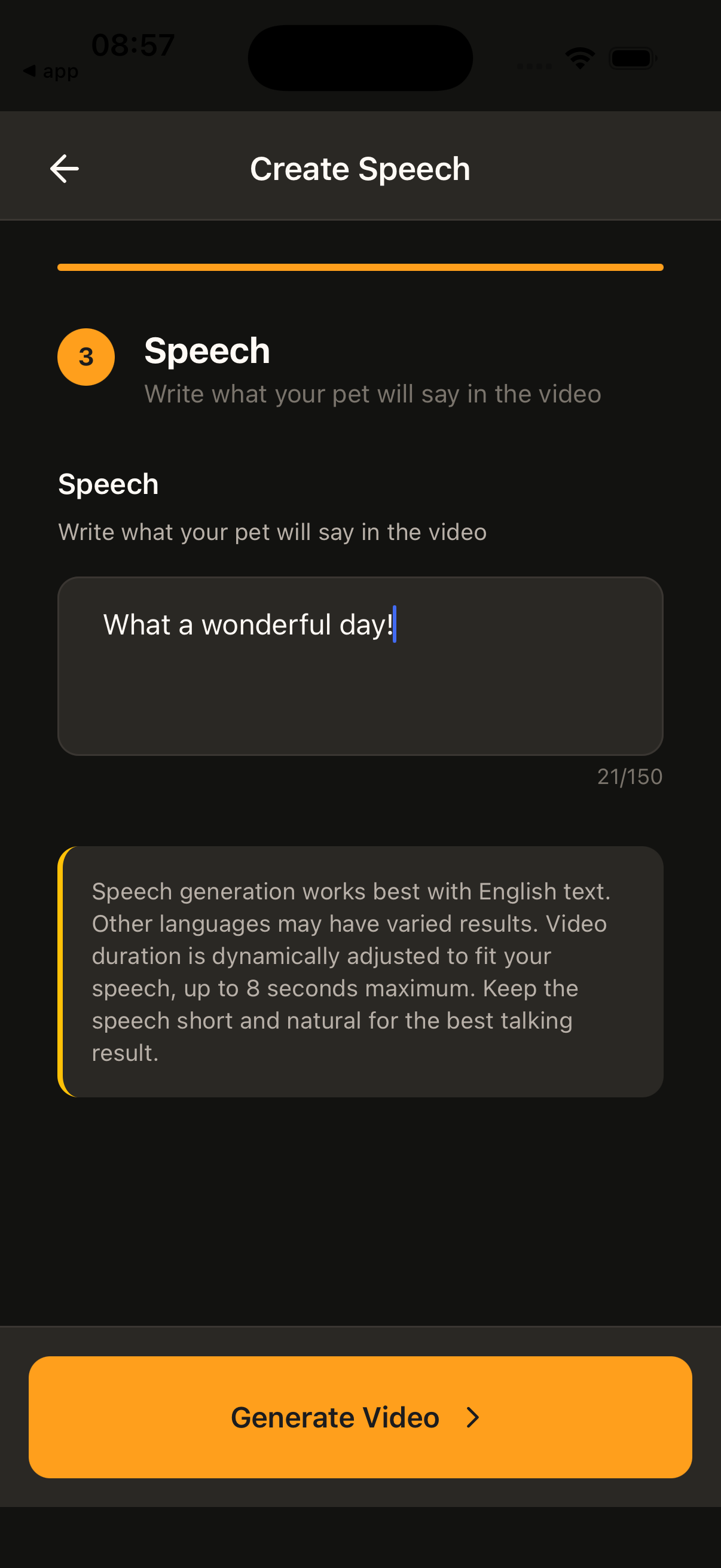 5
5 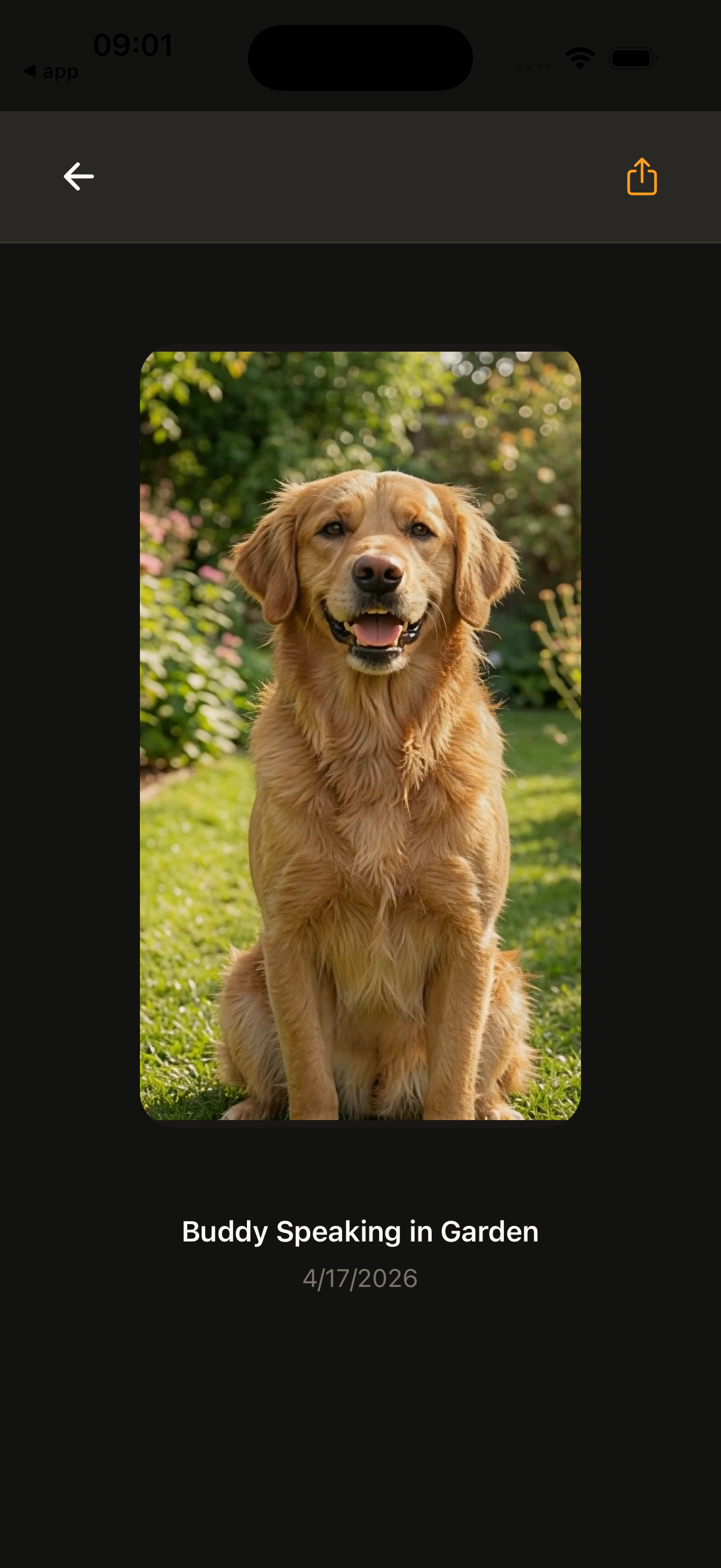 6
6 Tutorial 03
How to Create a Singing Video
Create a singing pet video by selecting your pet, optionally setting the scene, writing lyrics, choosing a music style, and generating the result.
Expand to view steps and images.
Tutorial 03
How to Create a Singing Video
Create a singing pet video by selecting your pet, optionally setting the scene, writing lyrics, choosing a music style, and generating the result.
Expand to view steps and images.
- 1 Tap the + button to create something new.
- 2 Choose Video from the create menu.
- 3 Tap Singing.
- 4 Select the pet you want to feature.
- 5 Adjust the scene or background if you want. This step is optional.
- 6 Enter your lyrics.
- 7 Choose a musical style such as rap, jazz, rock, country, or pop.
- 8 Tap Generate Video and wait for the result.
1 2 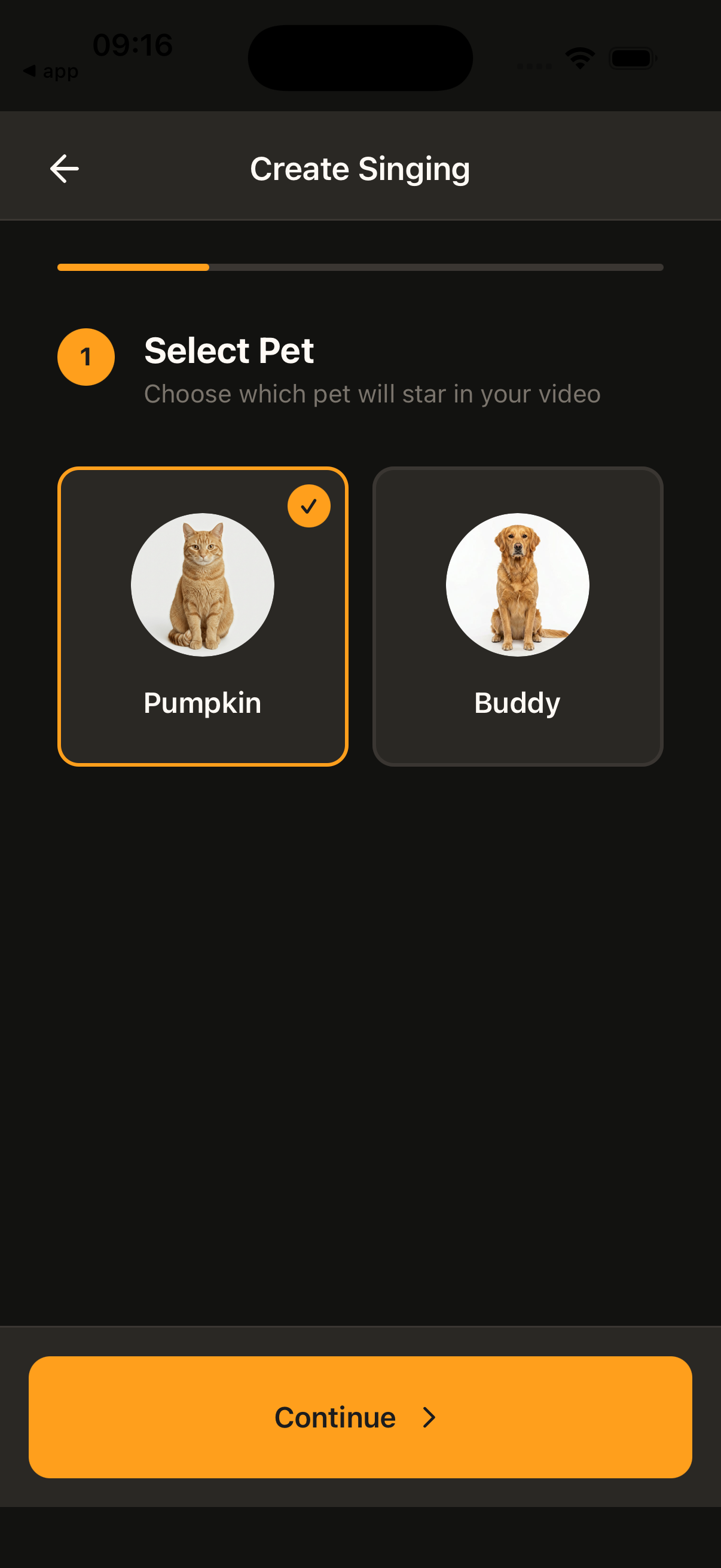 3
3 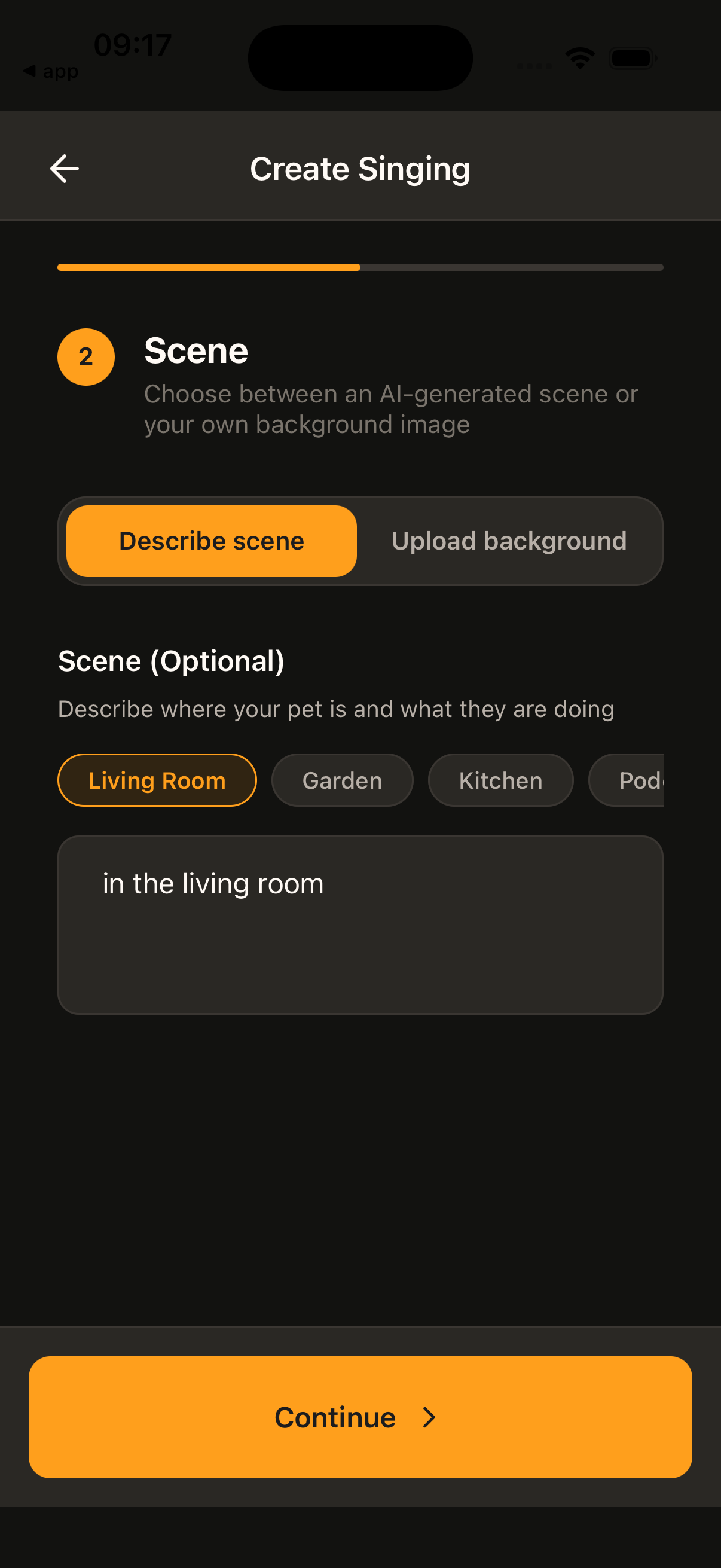 4
4 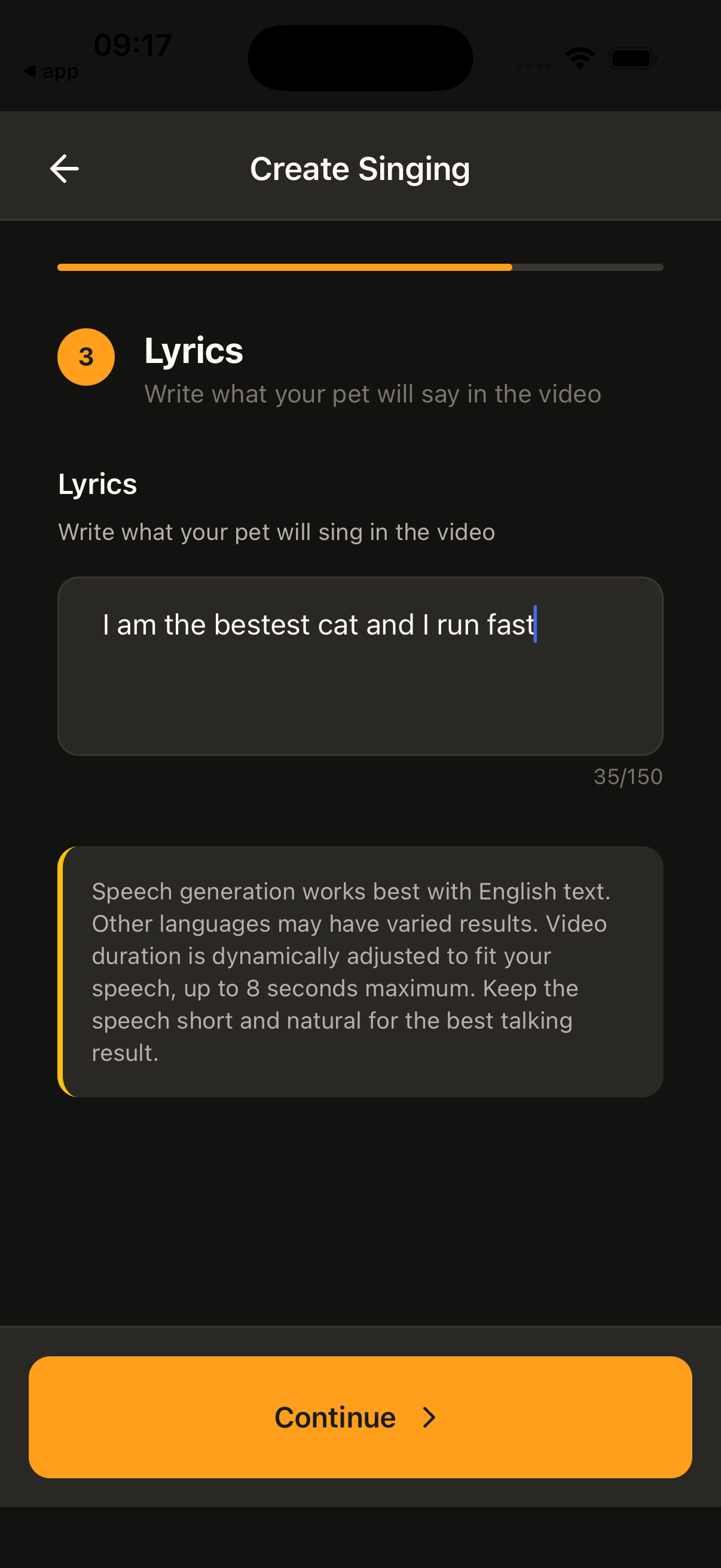 5
5 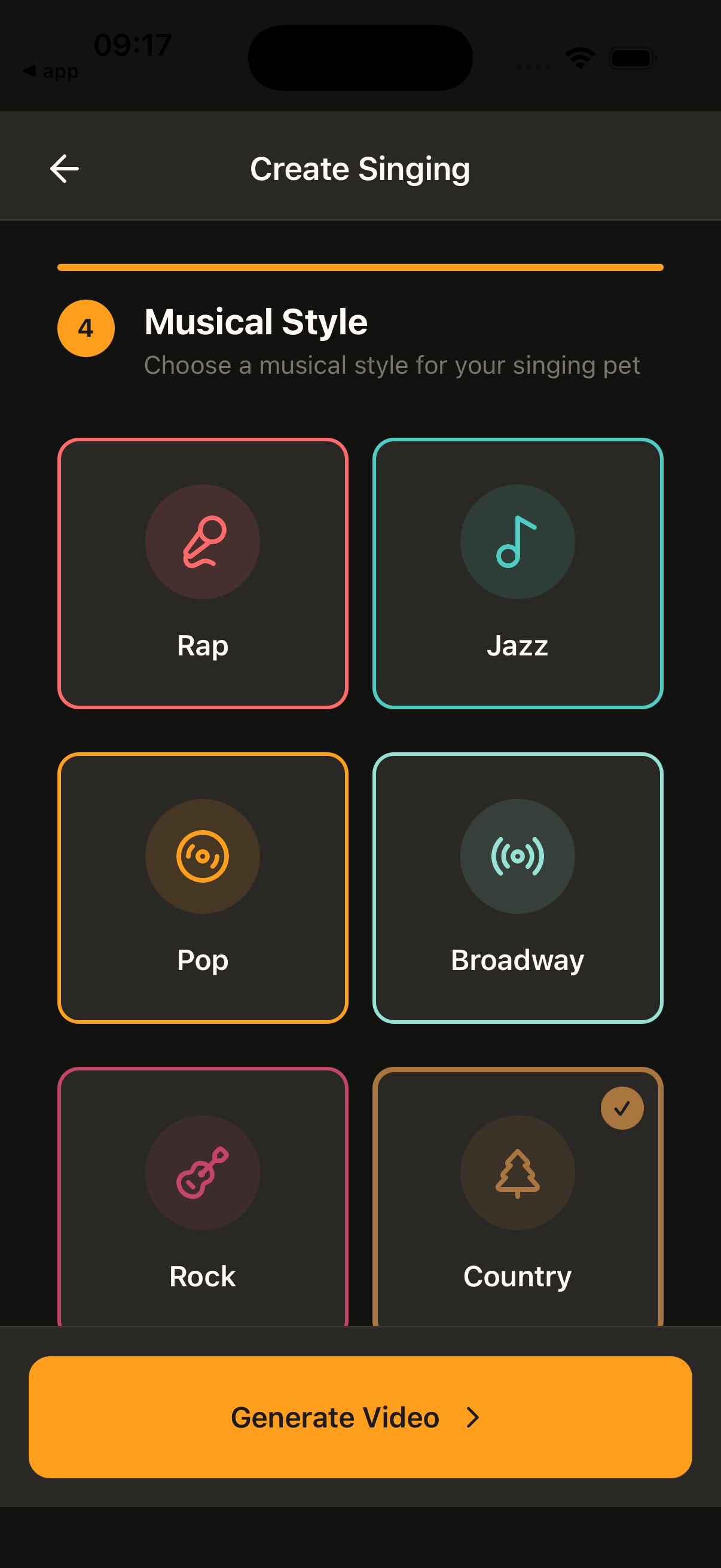 6
6 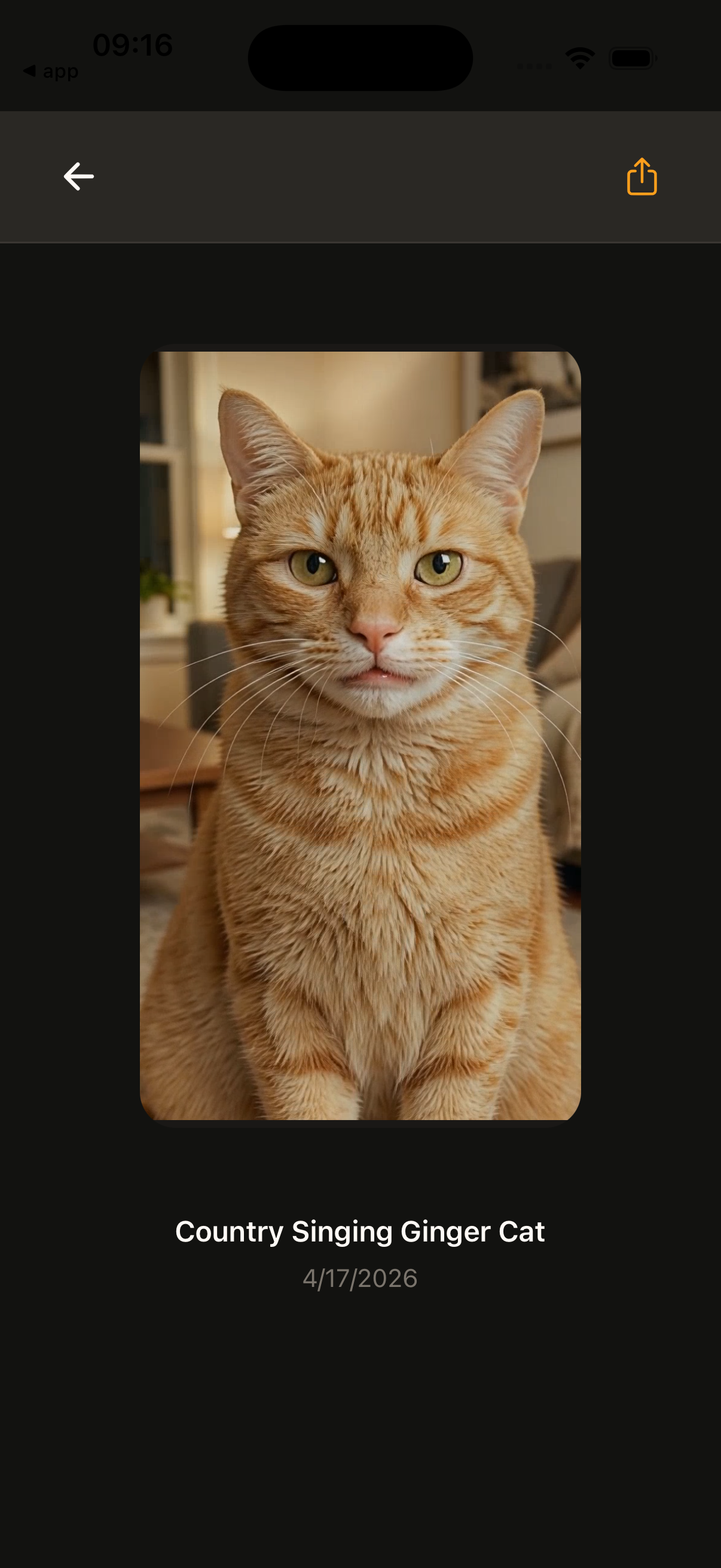 7
7 Tutorial 04
How to Use Motion Templates and Dancing Moves
Pick a motion template, choose up to four pets, and generate a ready-made dance or movement video in a few quick steps.
Expand to view steps and images.
Tutorial 04
How to Use Motion Templates and Dancing Moves
Pick a motion template, choose up to four pets, and generate a ready-made dance or movement video in a few quick steps.
Expand to view steps and images.
- 1 Tap the + button to create something new.
- 2 Browse the template categories and pick a template you like.
- 3 You can also tap category titles to explore more templates.
- 4 Select your pets. You can choose up to 4 pets.
- 5 Tap Generate Video and wait for the result.
1 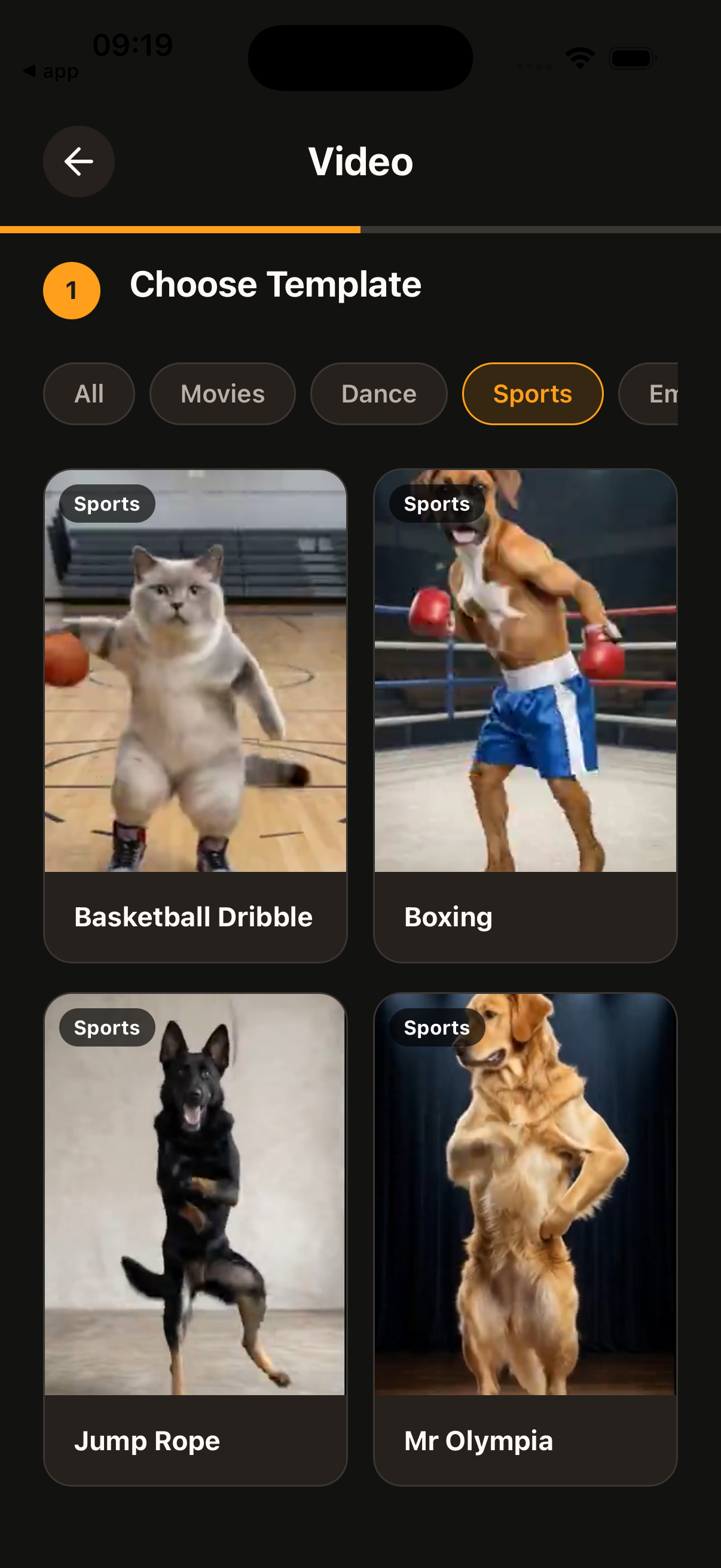 2
2 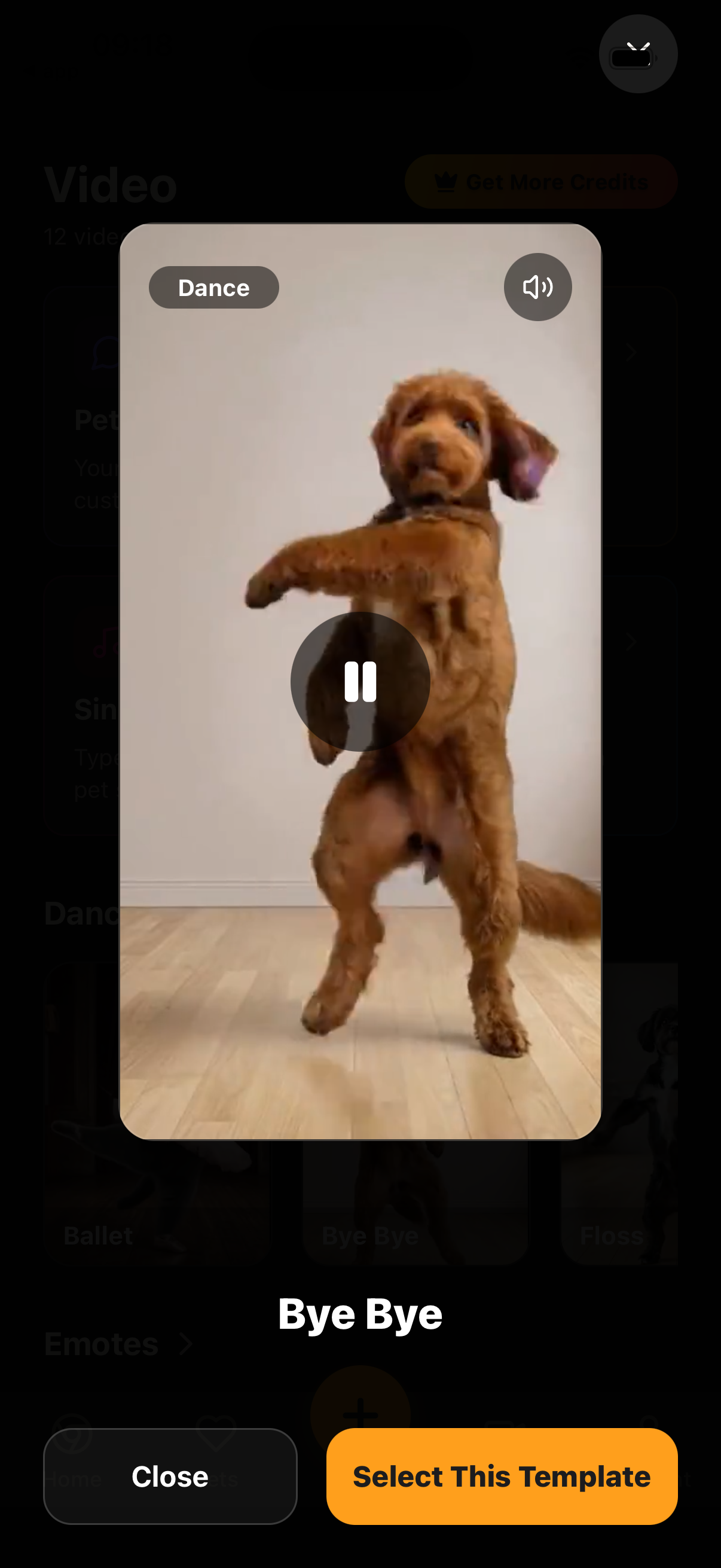 3
3 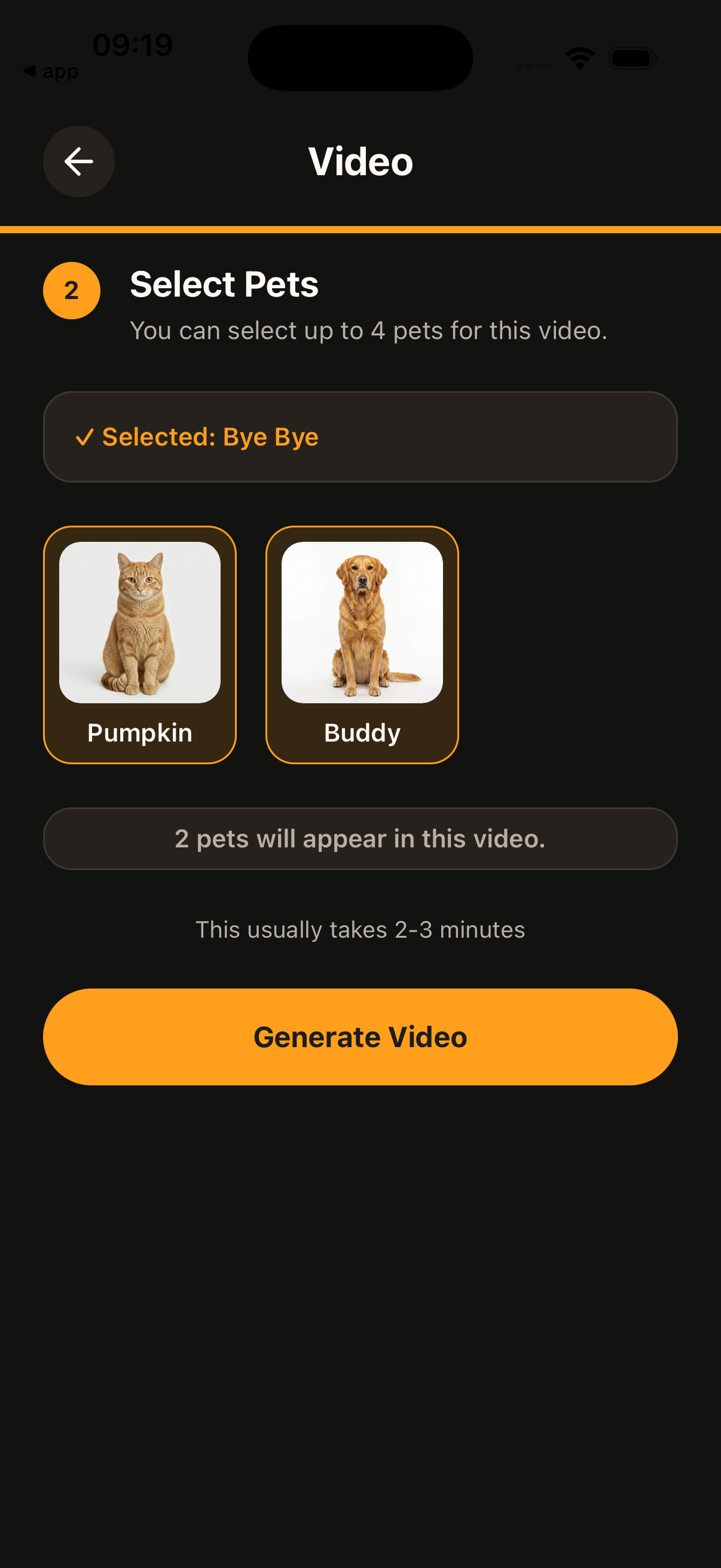 4
4 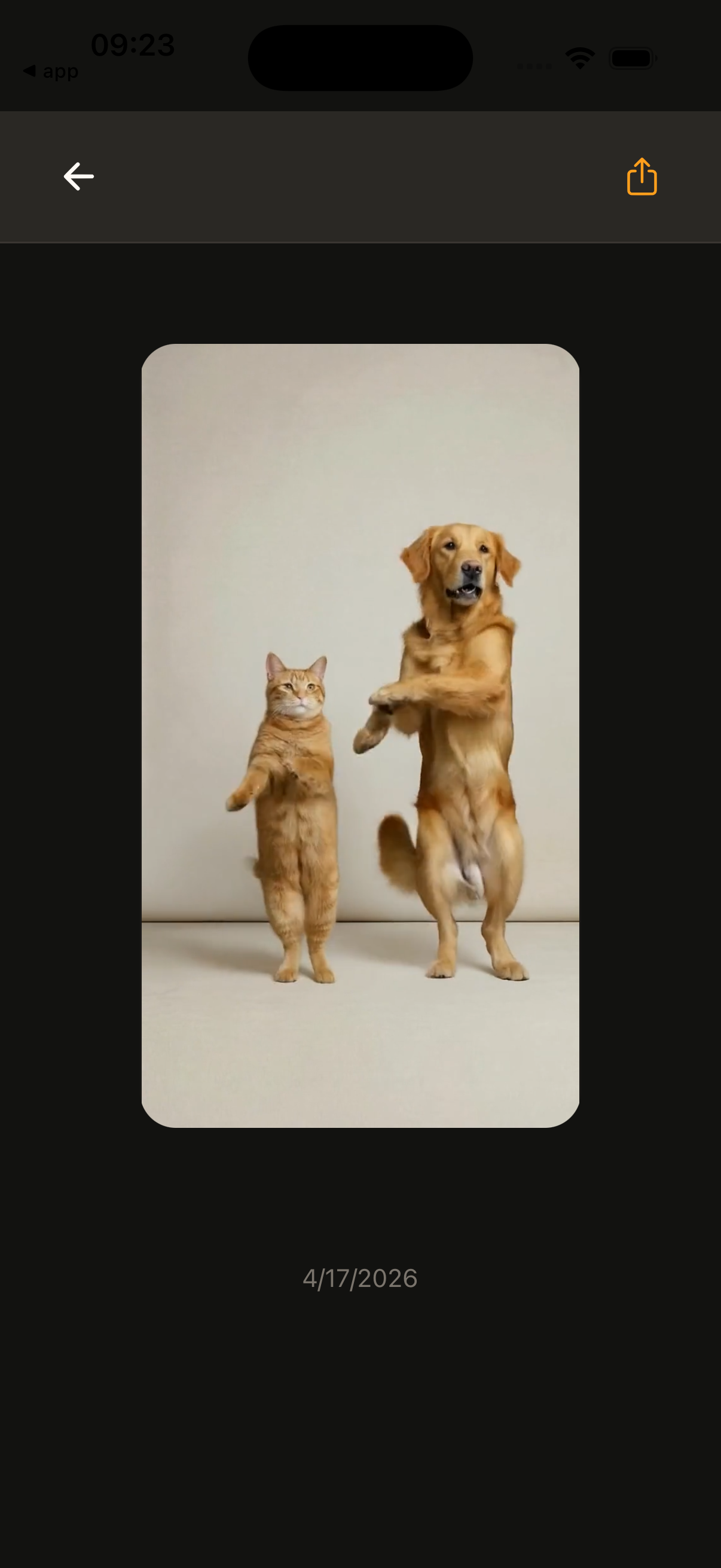 5
5 Tutorial 05
How to Create a Two-Pet Chat Video
Create a conversation between two pets by selecting both pets, optionally choosing voices and scene settings, then writing the dialogue turn by turn.
Expand to view steps and images.
Tutorial 05
How to Create a Two-Pet Chat Video
Create a conversation between two pets by selecting both pets, optionally choosing voices and scene settings, then writing the dialogue turn by turn.
Expand to view steps and images.
- 1 Tap the + button to create something new.
- 2 Choose Video from the create menu.
- 3 Tap Two-Pet Chat.
- 4 Select your pets.
- 5 Select voices if you want to keep them consistent across different Two-Pet Chat videos. This step is optional.
- 6 Adjust the scene or background if you want. This step is optional.
- 7 Enter your dialogue in turns and add more turns if you want.
- 8 Tap Generate Video and wait for the result.
1 2 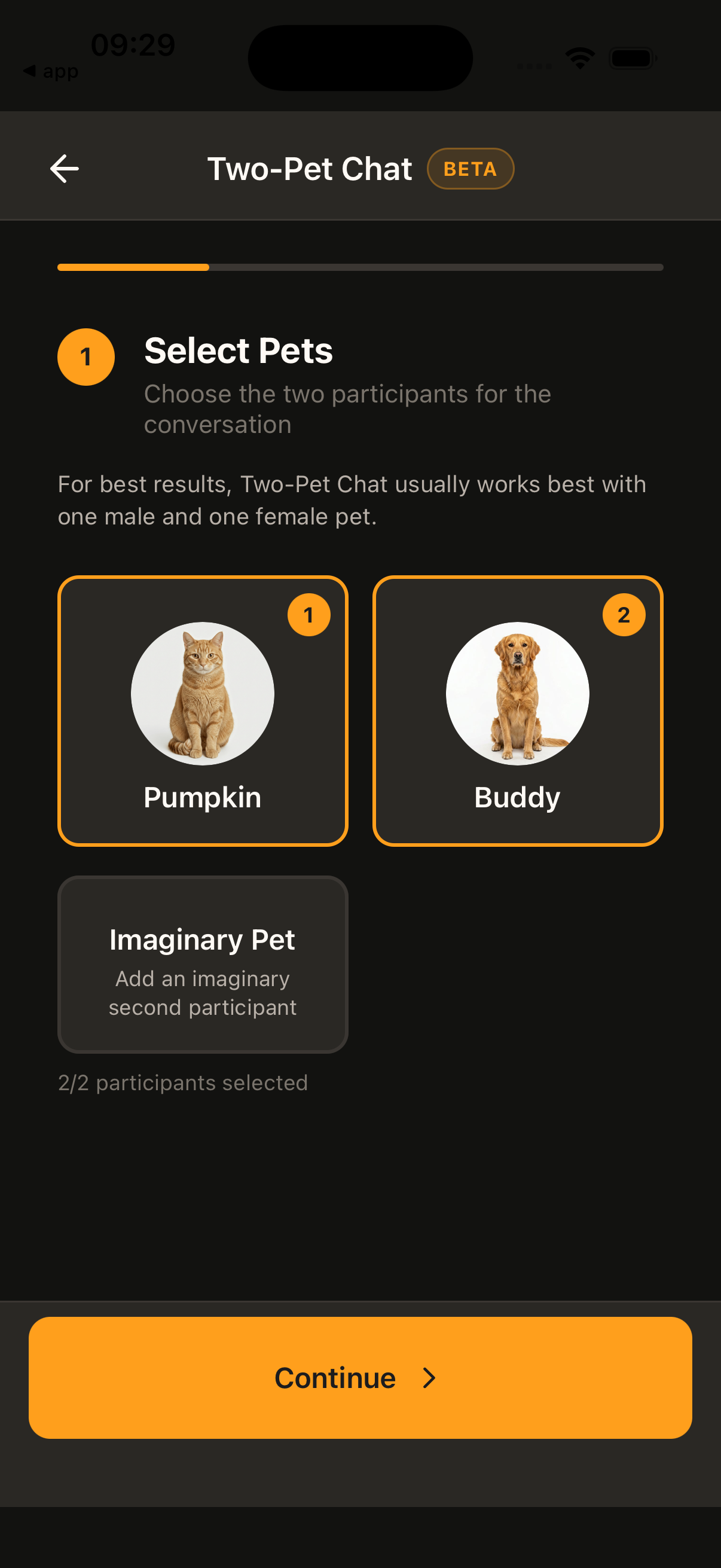 3
3 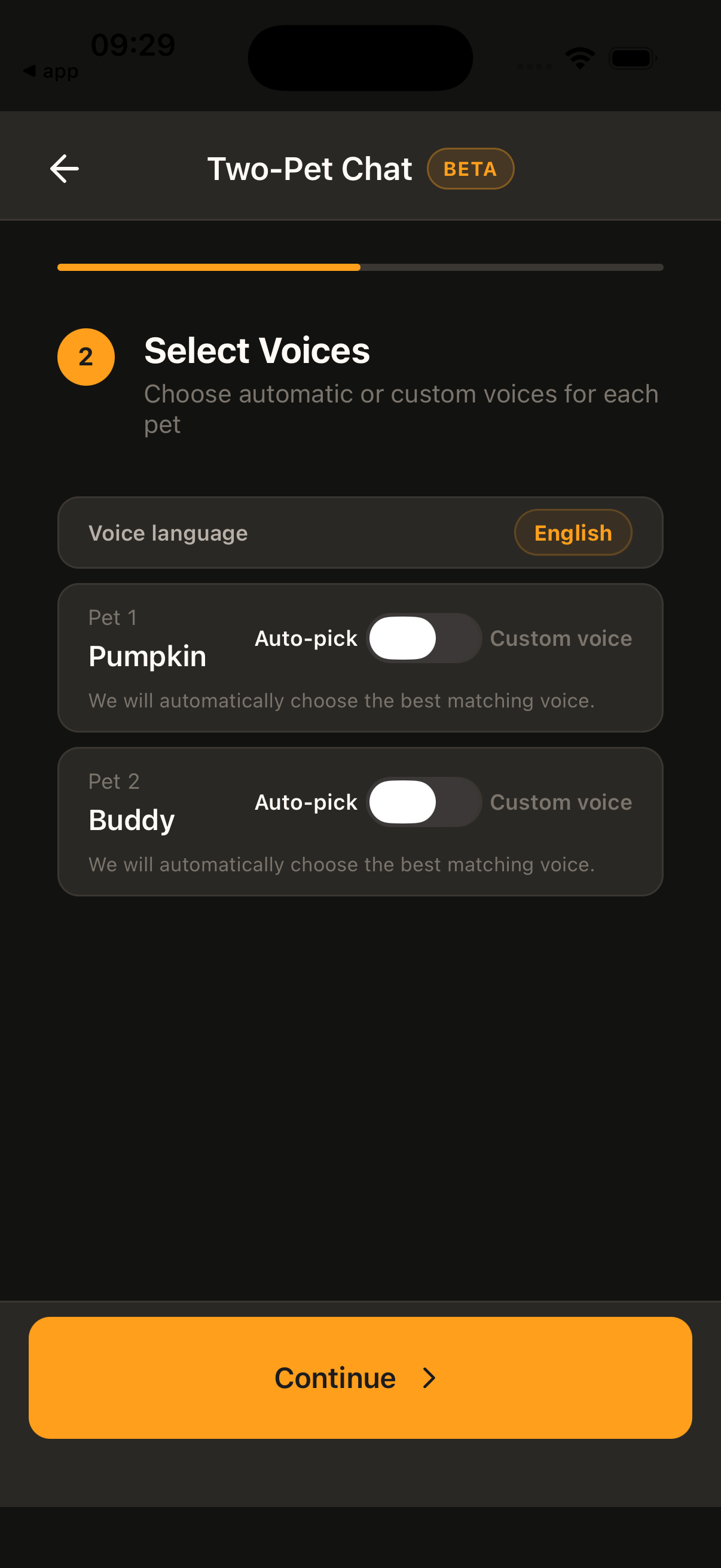 4
4 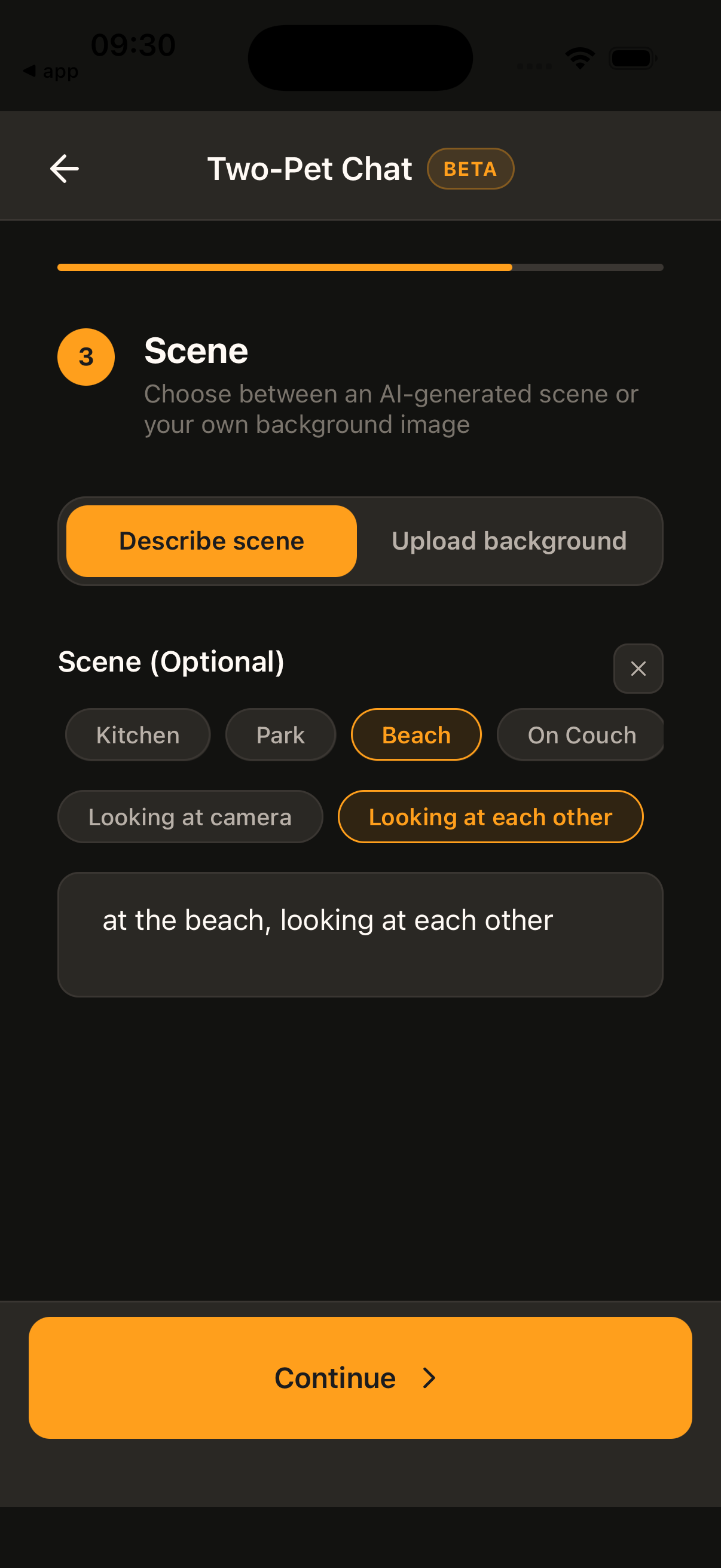 5
5 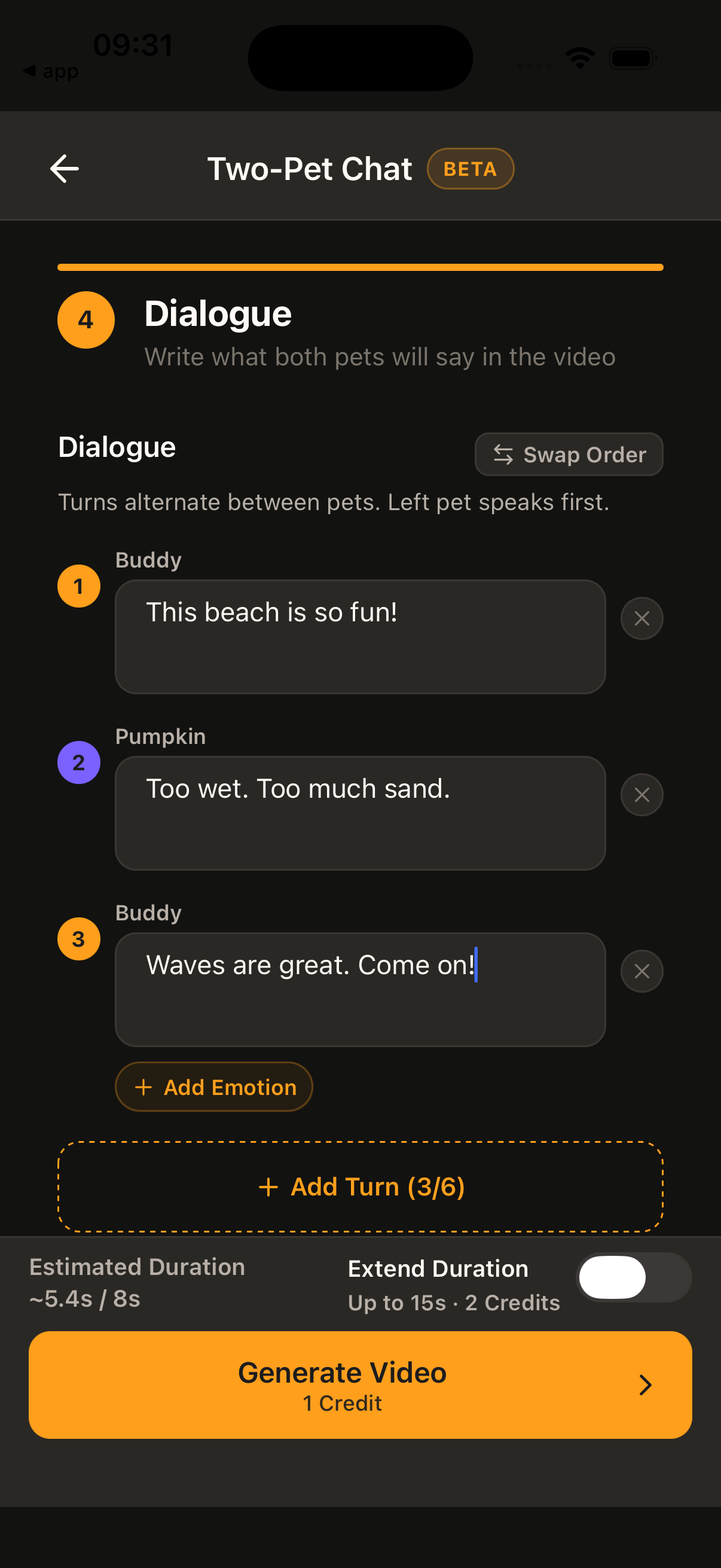 6
6 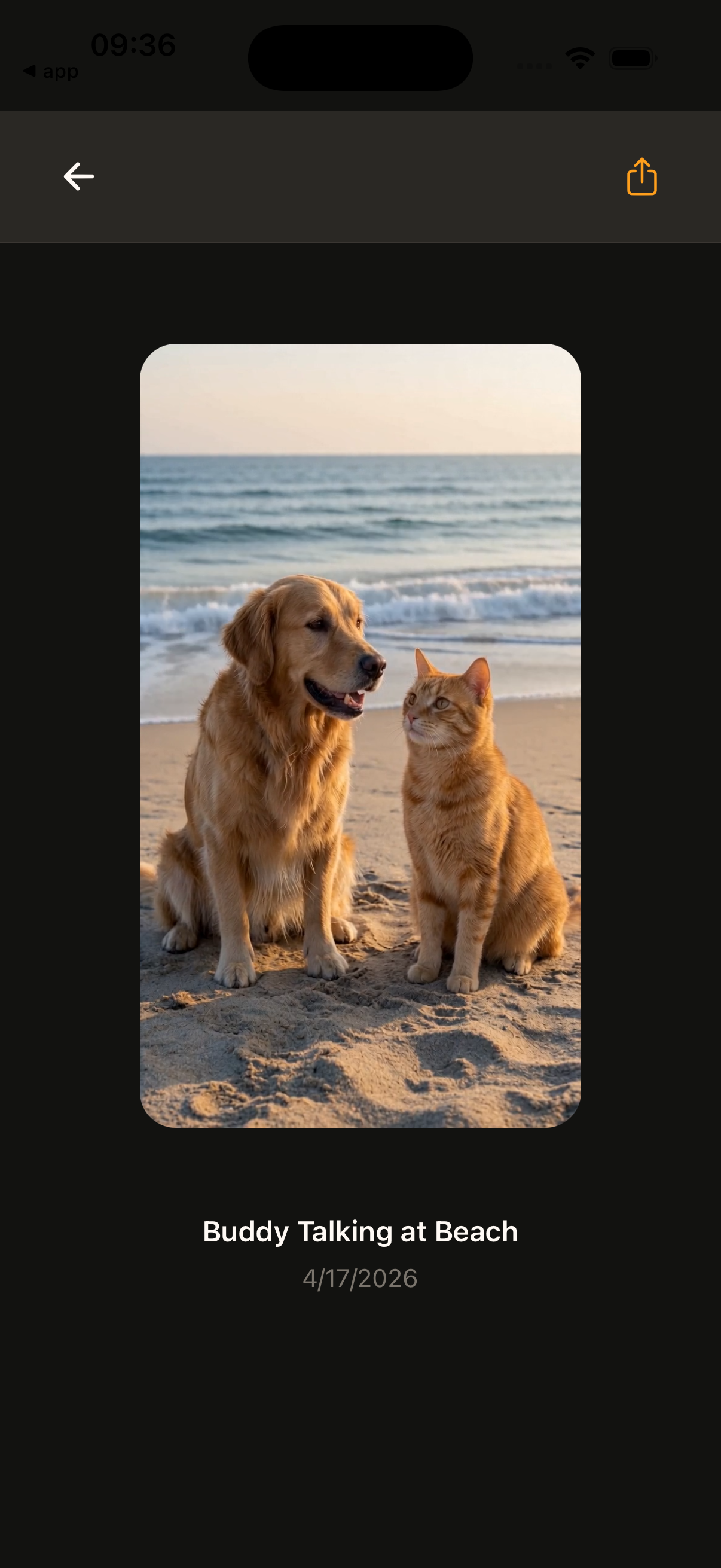 7
7 Ready to make your first one?
Download WigglePet and follow along with your own pet.
 Scan to download